> For the complete documentation index, see [llms.txt](https://docs.guilde.ai/llms.txt). Markdown versions of documentation pages are available by appending `.md` to page URLs; this page is available as [Markdown](https://docs.guilde.ai/documentation/getting-started/quickstart.md).
# Customer Hosted Guilde Installation
Follow these steps in order to install Guilde in your cloud.
### Assets Provided By Guilde Support Staff
* URL to access the Guilde installer
* Credentials to access the Guilde AWS ECS Image Registry
### Requirements
* Workstation: The current version of the Guilde installer is an Apple Silicon MacOS binary. More platforms will be available soon.
* Recommended browser: Chrome
Before using the Guilde installer, validate that the \~/.aws folder has the necessary permissions to access the AWS account in which Guilde will be installed. Best practice is to use a new AWS sub-account.
The Guilde CLI expects \~/.aws/config to have a default region defined:
```
~/.aws/config
[default]
region = us-west-1
```
The Guilde CLI expects the \~/.aws/credentials to have same the aws\_access\_key\_id and aws\_secret\_access\_key as the AWS account in which Guilde will be installed.
```
~/.aws/credentials
[default]
aws_access_key_id =
aws_secret_access_key =
```
Note: To locate the access\_key\_id and secret\_access\_key in the AWS console, click on Username in the top right of the screen. Select security credentials and scroll down to Access keys.
### Step 1: Guilde Init
Run:
```
./guilde init
```
Guilde init writes to \~/.guilde/deployments/production
### Step 2: Guilde Installer
The Guilde Installer will ask several questions to complete your installation. When prompted, answer as directed below:
* Where will Guilde be hosted: Define the URL on which you intend to host Guilde (e.g. [guilde.dev.COMPANY.com](http://guilde.dev.front.com/))
* Deployment Size: Small
* Enter the AWS ECS Keys provided by your Guilde representative. These are provided to give your cluster access to our images.
* AWS Access Key ID: Provided by Guilde team
* AWS Secret Access Key: Provided by Guilde team
* Generate Encryption Key: Yes
* AWS Region: Choose the region you prefer (e.g. us-west-1)
* EKS Cluster: Choose the “new cluster” option
* SSL Certificate: Choose to generate new ACM certificate (Amazon Certificate Manager)
* \* Note that you may see a warning “Could not retrieve validation record: no validation records found” - this is fine.
* Kubernetes Namespace: guilde
* Install AWS Load Balancer Controller: Yes
* Enable AWS Verified Access with Cognito: Yes
* Access Policy Name: guilde-access-policy
* Do you have an existing Cognito User Pool: No, create one
* Allowed Email Domains: include any domains employees have email addresses for - do not include public email services such as gmail.com. Any user with an email address that matches these filters will be permitted to create an account on the Guilde system.
* Initialize: Yes
* Create EKS Cluster: Yes
* Certificate Validation Required: Add the provided CNAME record to DNS to prove ownership of the domain name to Amazon Certificate Manager:
Type: CNAME
Name: XXXXXXX
Value: XXXXXXX
Optional: Navigate to AWS Certificate Manager in the AWS Account on which Guilde will be installed. Select “Certificates” and then the Certificate for the subdomain selected at the beginning of guilde init. Wait for that certificate to move from “Pending Validation” to “Issued.”
### Step 3: Deployment
Run:
```
./guilde status --deployment production
```
Run:
```
./guilde deploy --deployment production
```
On success, DNS CONFIGURATION REQUIRED will appear
Set up this last CNAME in your DNS.
### Step 3: Install Guilde Application
* To install the Guilde GitHub application, enter the GitHub Organization Name and select “Preview”
* Review the GitHub App Configuration and select “Create GitHub App”
* GitHub App Name will appear. Select “Create GitHub App.”
* Define an Organization Name. Note that this does not need to be the same as the GitHub Organization name. Select “Create Organization.”
* Select “Open in GitHub”
* Select the repositories you intend Guilde to work in, then select “Install.”
* Select the option to “Continue with GitHub” at the bottom of the Sign In page.
* Select “Authorize Guilde”
* Select Sign Up button at the bottom of the Sign In page
* Enter email address and define a password. Select “Create Account.”
* Select “Link GitHub Account”
* Upon success, the message “GitHub account linked successfully” will appear:
### Step 4: Configure LLM API Keys
* Copy and paste the OpenAI and Anthropic API keys that were already provisioned into the Guilde Application
* Select “Save Changes”
### Step 5: Initiate Your First Sprint
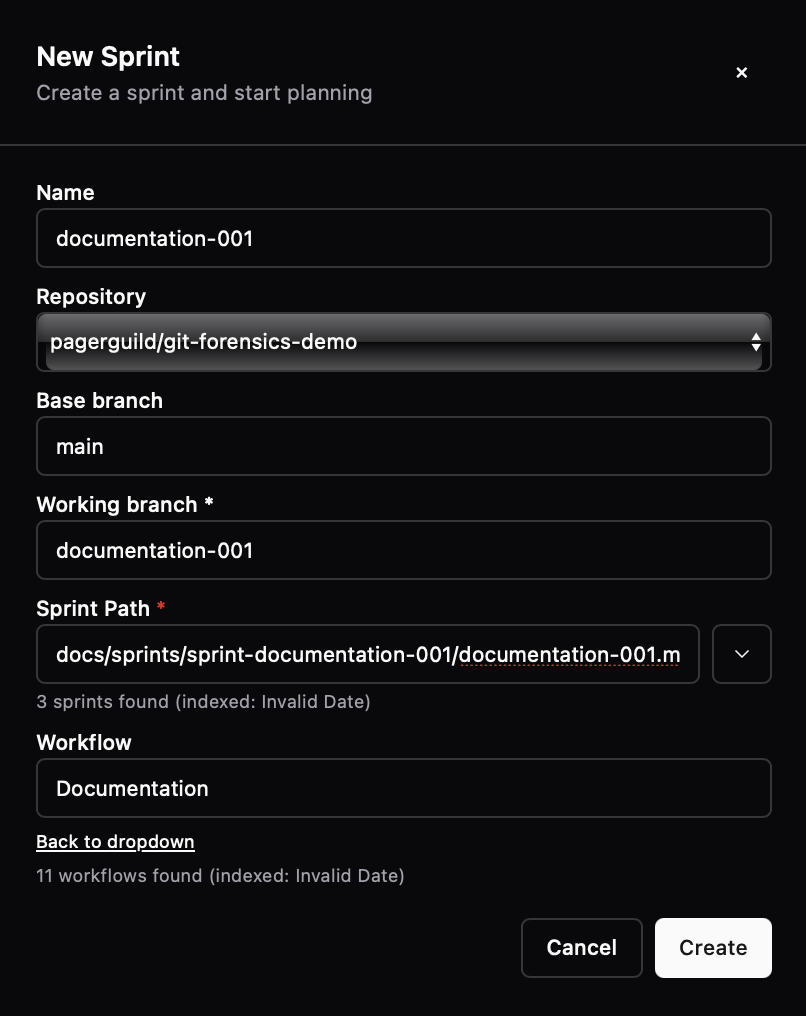
* In the Guilde application, navigate to the Dashboard page and select “New Sprint.”
* Name the sprint “documentation-001” and assign it the same working branch name: documentation-001. Be sure to choose a branch name that does not yet exist in the repository.
* Select the repository
* The base branch will be automatically generated
* Select the “Documentation-workflow”
* Select Create.
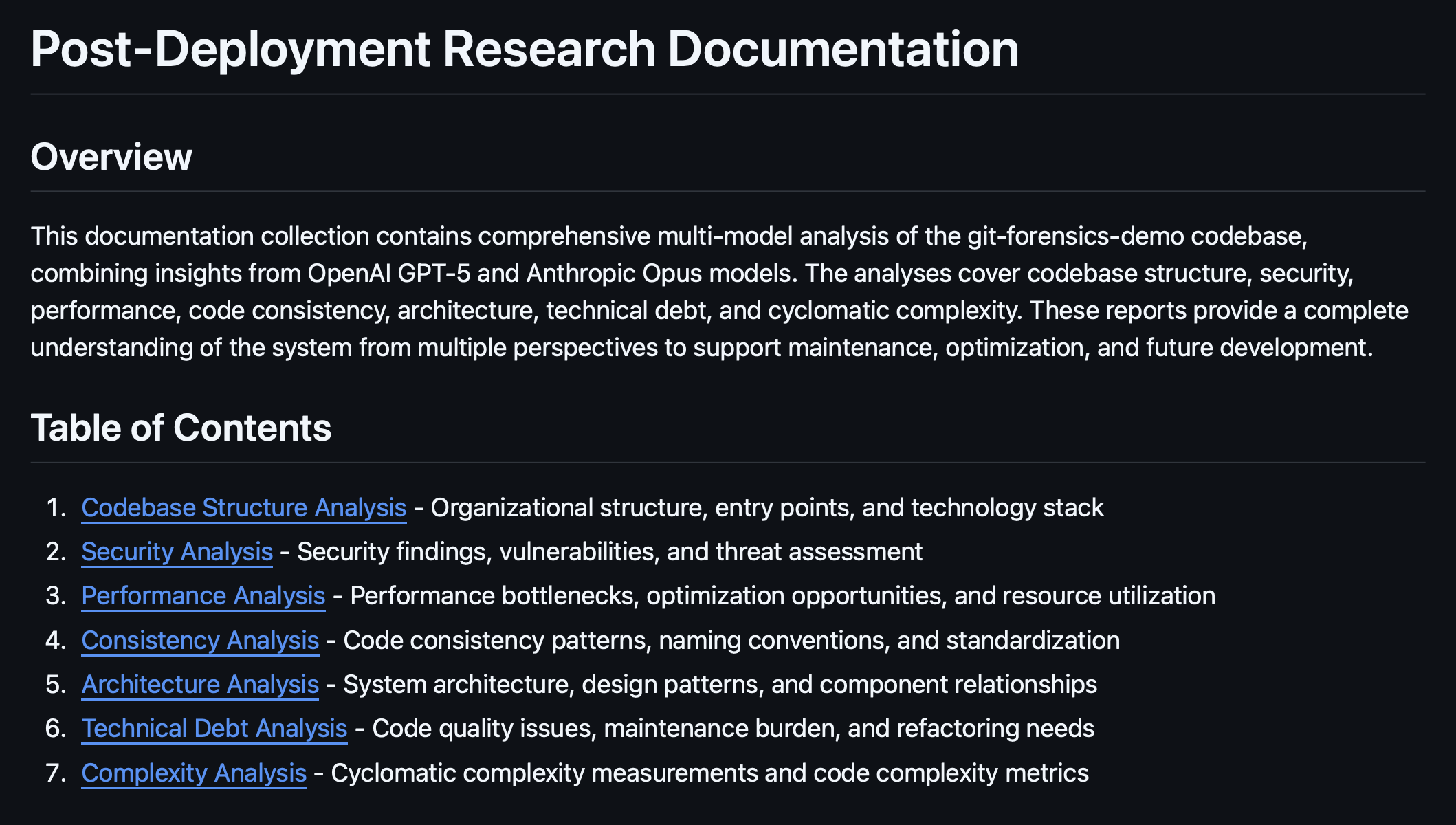
* Once workflow complete, please review the generated documentation on the branch "documentation-001"
* After the Sprint completes, review the documentation Guilde generates.
* Review the code quality issues identified in the Technical Debt Analysis and consider creating Sprints to mitigate each issue.