> For the complete documentation index, see [llms.txt](https://docs.guilde.ai/llms.txt). Markdown versions of documentation pages are available by appending `.md` to page URLs; this page is available as [Markdown](https://docs.guilde.ai/documentation/getting-started/quickstart-2.md).
# User Onboarding
Guilde helps AI generate the most reliable production-ready code. By redesigning each step in the SDLC, Guilde prevents the most common reasons agents waste your time. Automatically inherit the latest
### Sign Up For An Account
* Visit the URL provided by your Account Administrator to begin the Sign Up process for your firewall.
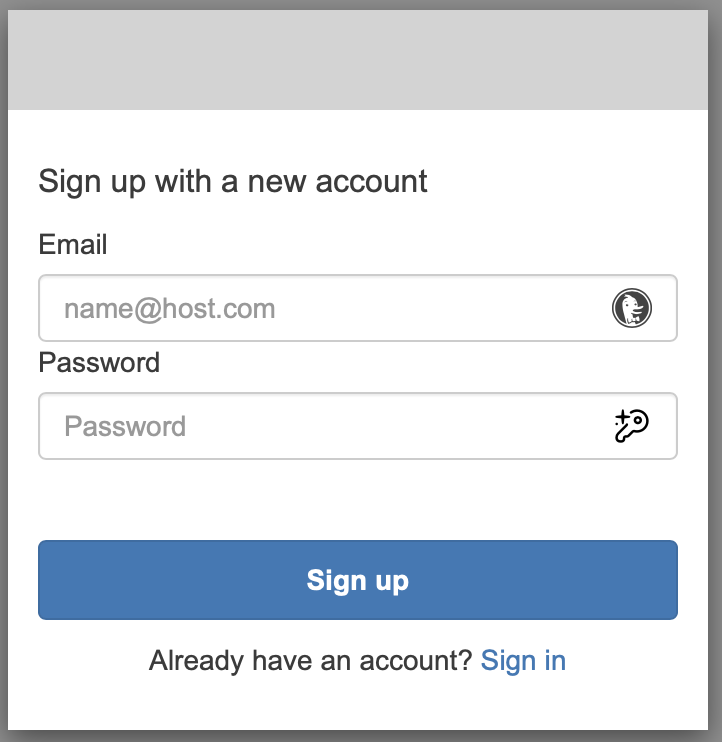
* AWS Verified Access Sign Up Process: Select “Sign Up” option to create an AWS Verified Access account in order to securely access the Guilde application.
* Create an Email and Password and select “Sign Up”
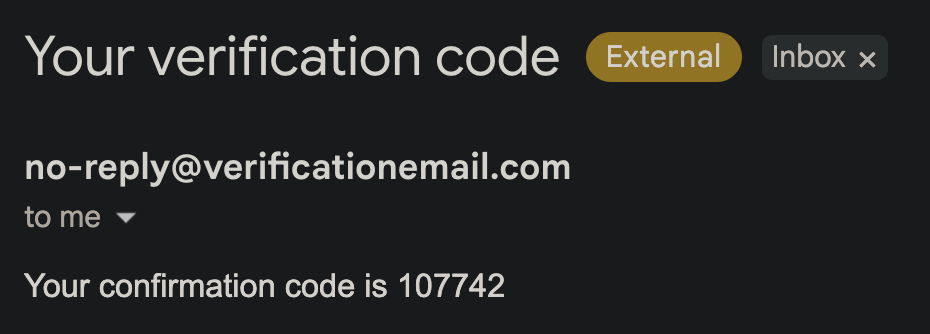
* Retrieve Account Verification Code by navigating to your email provider. Look for an email from “verificationemail.com”
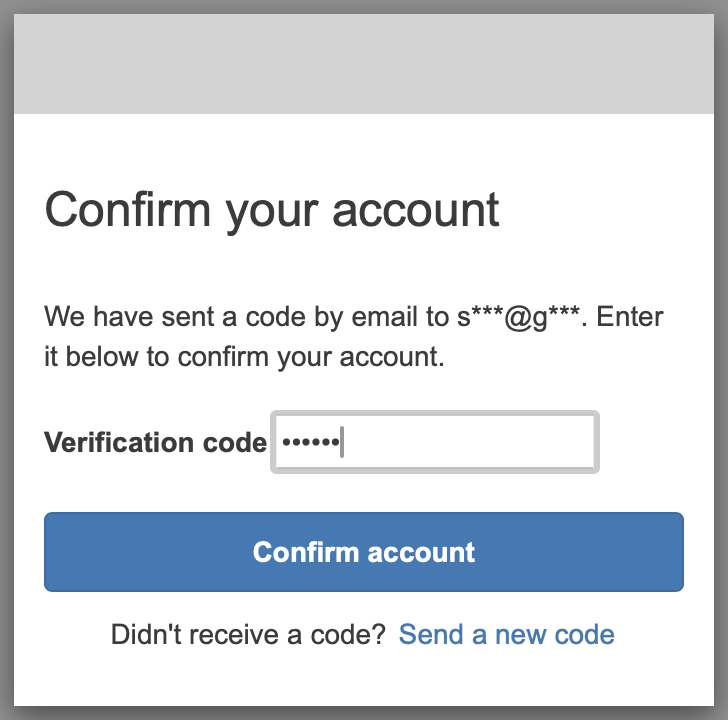
* Verify Account by copying and pasting the confirmation code into the Guilde UI. Select “Confirm Account.”
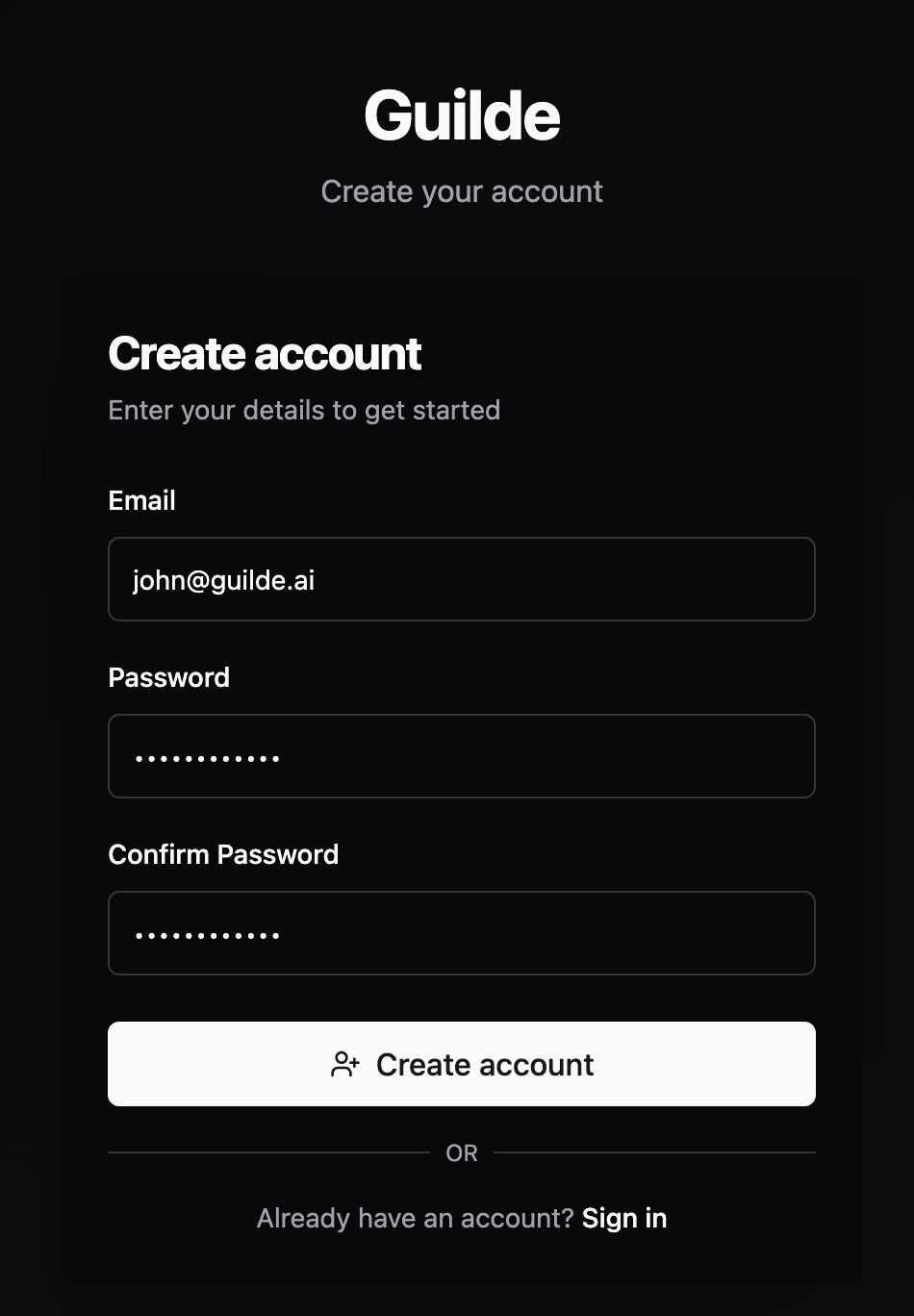
* Guilde Application Sign Up Process: Select Sign Up button at the bottom of the Sign In page
* Enter email address and define a password. Select “Create Account.”
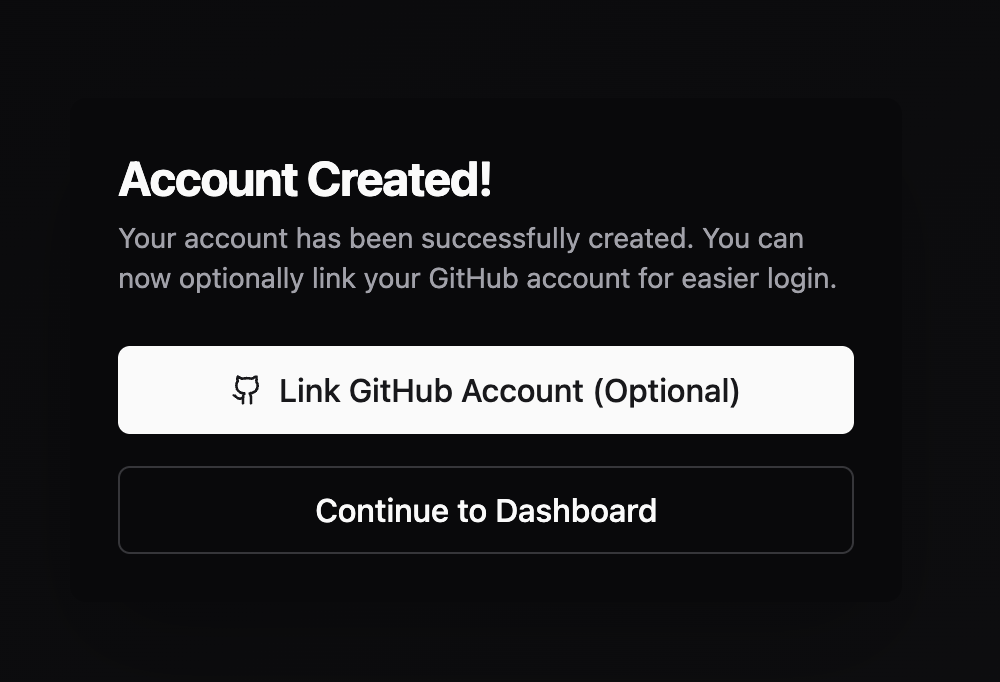
* Select “Link GitHub Account”
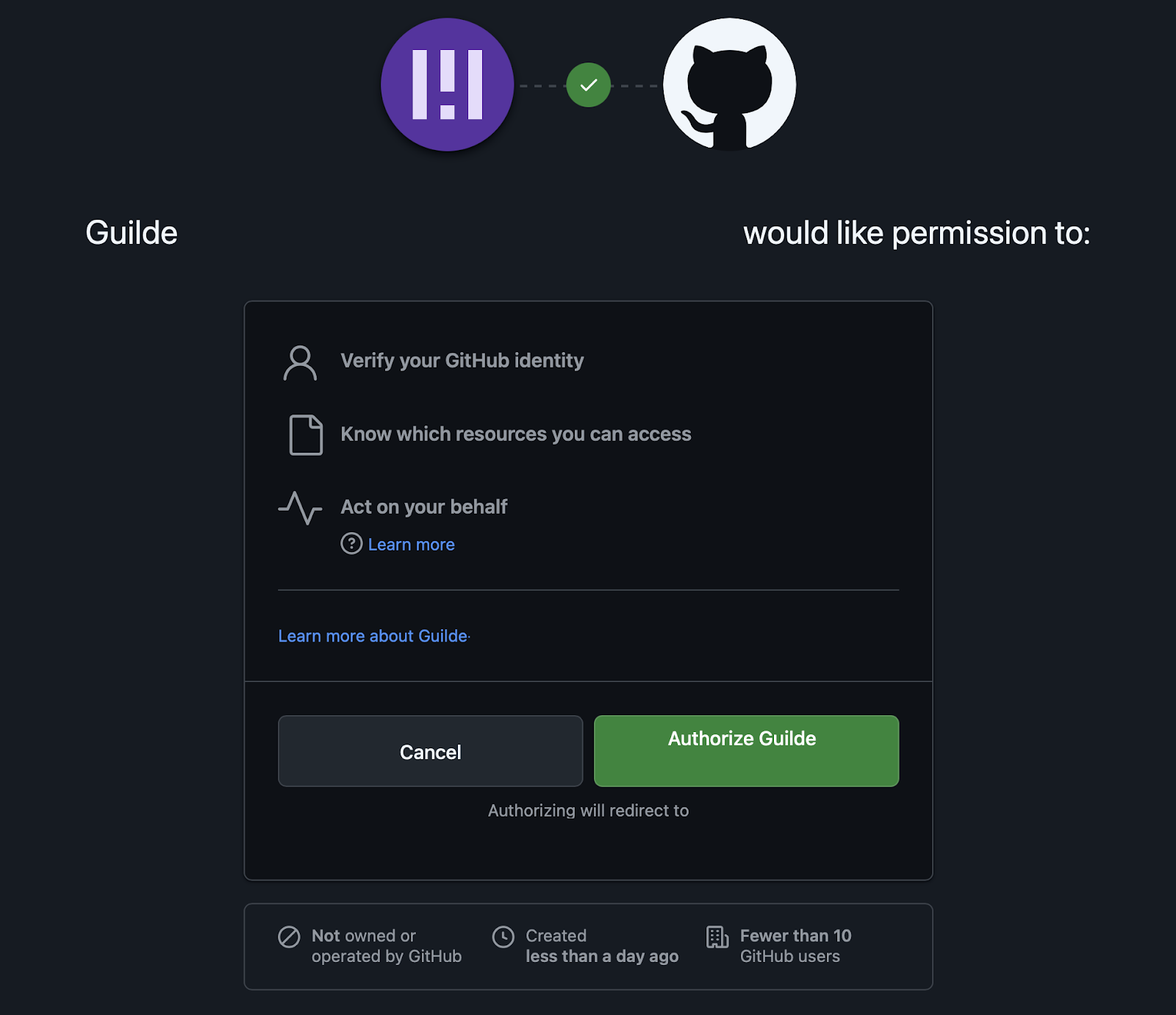
* Authorize Guilde: Select “Authorize Guilde”
### Initiate Your First Sprint
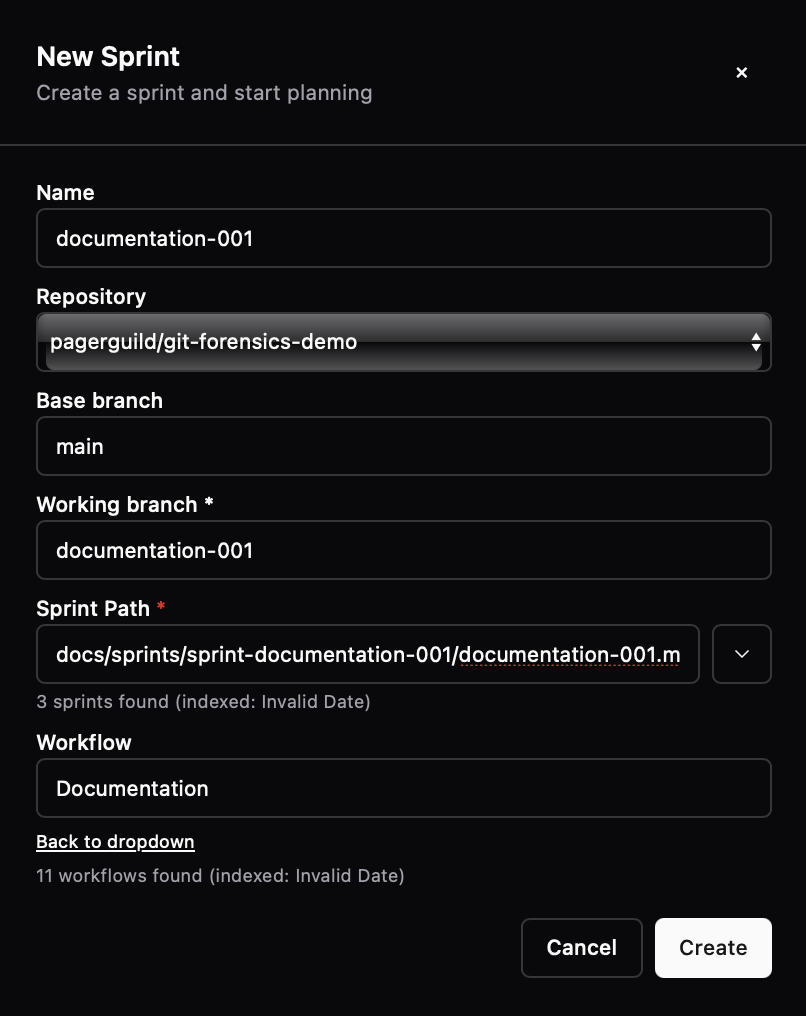
* In the Guilde application, navigate to the Dashboard page and select “New Sprint.”
* Name the sprint “documentation-001” and assign it the same working branch name: documentation-001. Be sure to choose a branch name that does not yet exist in the repository.
* Select the repository
* The base branch will be automatically generated
* Select the “Documentation-workflow”
* Select Create.
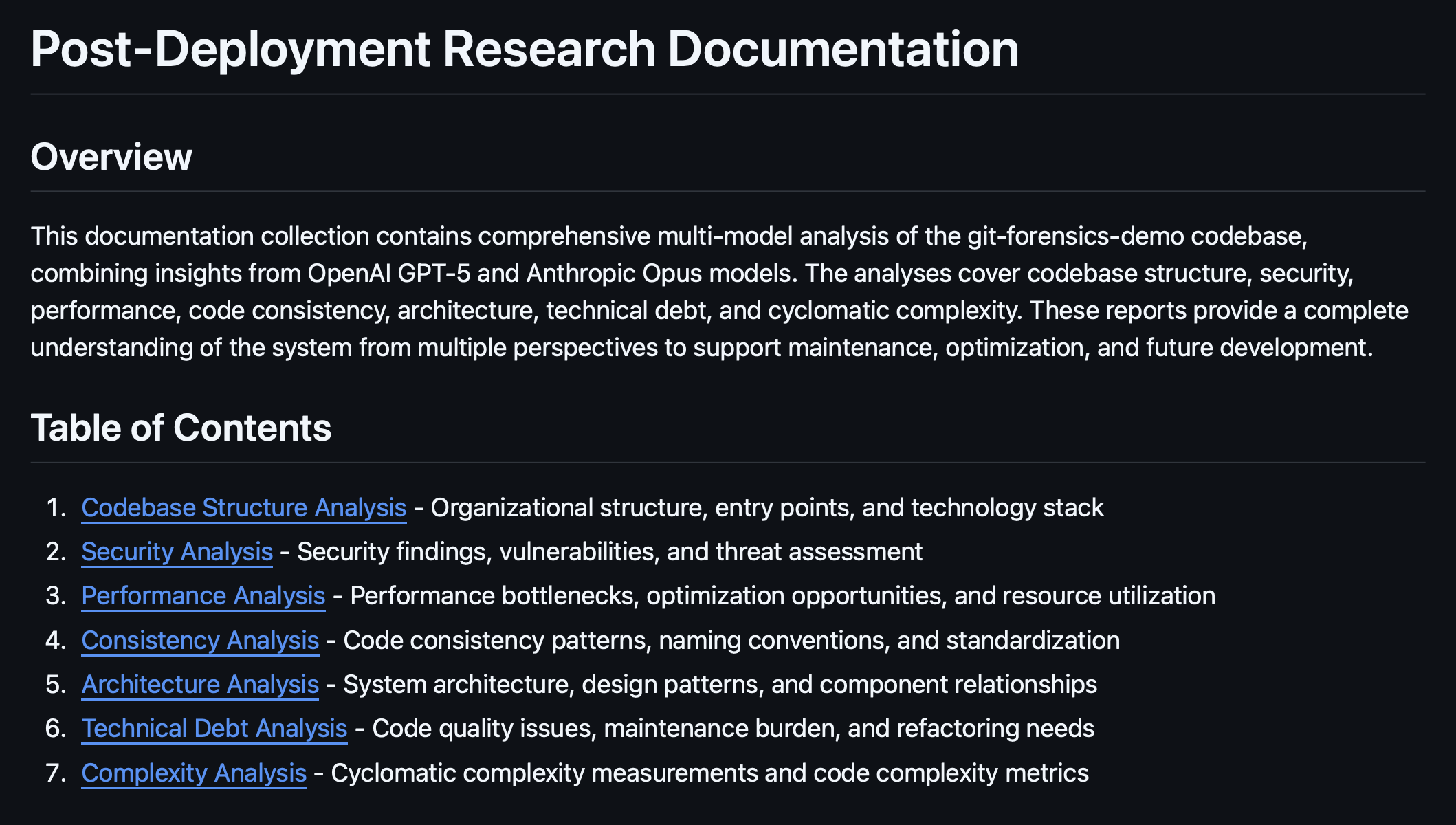
* Once workflow complete, please review the generated documentation on the branch "documentation-001"
* After the Sprint completes, review the documentation Guilde generates.
* Review the code quality issues identified in the Technical Debt Analysis and consider creating Sprints to mitigate each issue.